Getting Started with the AMP PDRD Workbench
Overview of Verily Workbench
Verily Workbench is a cloud-based platform designed for collaborative biomedical research. It integrates data management, analysis tools, and governance controls within a unified interface.
Key features include:
- Workspaces
- Workspaces are where researchers and teams connect, collaborate, and organize all the elements of their research, including data, documentation, code, and analysis.
- Cloud apps
- Cloud apps are a configurable pool of cloud computing resources. They’re ideal for interactive analysis and data visualization, and can be finely tuned to suit analysis needs.
- Data Collections
- Data collections represent multimodal datasets that you can publish to Verily Workbench’s data catalog, so users can reference these data in workspaces.
- Access, browse, save, and share data
Verily Workbench provides a variety of features to browse and interact with data in your workspace, making accessing, browsing, saving, and sharing your data easy.
Using AMP PDRD Data
To support your explorations, AMP PDRD offers “Getting Started” workspaces within Workbench, providing sample notebooks and guidance tailored to AMP PDRD datasets. This companion document outlines the specific steps and resources necessary to use the AMP PDRD datasets in Verily Workbench.
Workspaces and Data Resources
The following workspaces and data catalogs are available to support your explorations of AMP PDRD data. These resources provide program-specific examples, documentation, and data references. This section, Using AMP PDRD Data, provides step-by-step guidance for setting up your own workspace, incorporating data from the program, and running analyses across your selected datasets.
AMP PDRD Resources
Getting Started Workspaces
Data Catalogs
- Tier 1
- Tier 2
Before You Begin
In order to run the following example of an AMP PDRD analysis, you will need to have access to the repository, with a signed Data Use Agreement (DUA). Registration for AMP PDRD must be done with the same Google account you are using to log into Verily Workbench. If you do not have access to the repository, the following link provides instructions for registration:
In addition to having access to the repository, users must have access to billing configured in Verily workbench. In Verily Workbench, Pods are created that are associated with cloud billing accounts, and when Workspaces and Data Collections are created, they are associated with Pods. This allows any cloud service costs generated during the use of Verily Workbench to be charged to the correct billing account.
Many organizations that use Verily Workbench will have billing accounts and Pods set up. If you do not see any Pods available to use in Verily Workbench, contact your administration to determine whether a billing Pod is available for you to use and how to request access.
For more information about how to set up billing with pods in Verily workbench, please see the following link:
Migrating Workspaces for Legacy Terra Users
Some AMP PDRD researchers may already have active workspaces in Terra. If you are a legacy Terra user and would like to continue your work in Verily Workbench, a dedicated migration guide is available to help you move your existing workspaces, notebooks, and data. This process is only relevant for users who previously worked in Terra; new users do not need to complete these steps. Please refer to the AMP PDRD Terra to Verily Workbench Workspace Migration guide [here] for detailed instructions.
Create a New Workspace in Verily Workbench
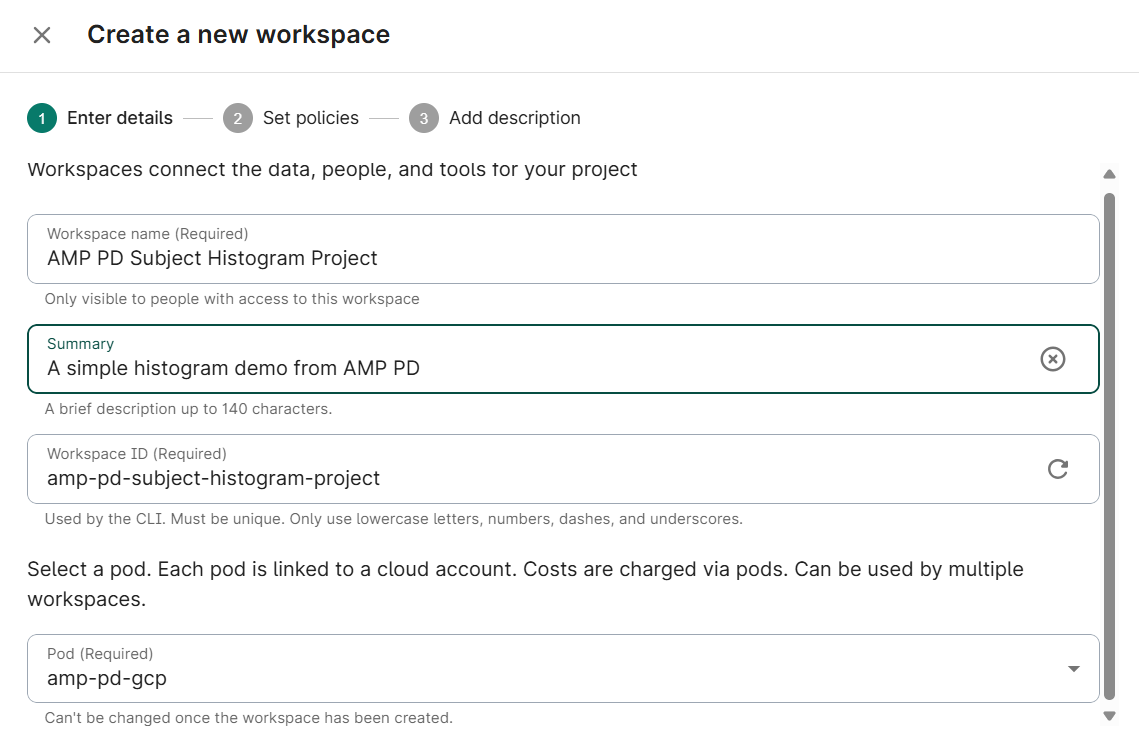
Create your own new blank workspace and title it:
Assign a title and description, and select the pod you wish to associate this workspace with; click Next
- Choose whether to limit access to groups
- Select the bucket region for your workspace; click Next
- Optionally add a description; click Create Workspace
Add AMP PDRD Resources to Workspace
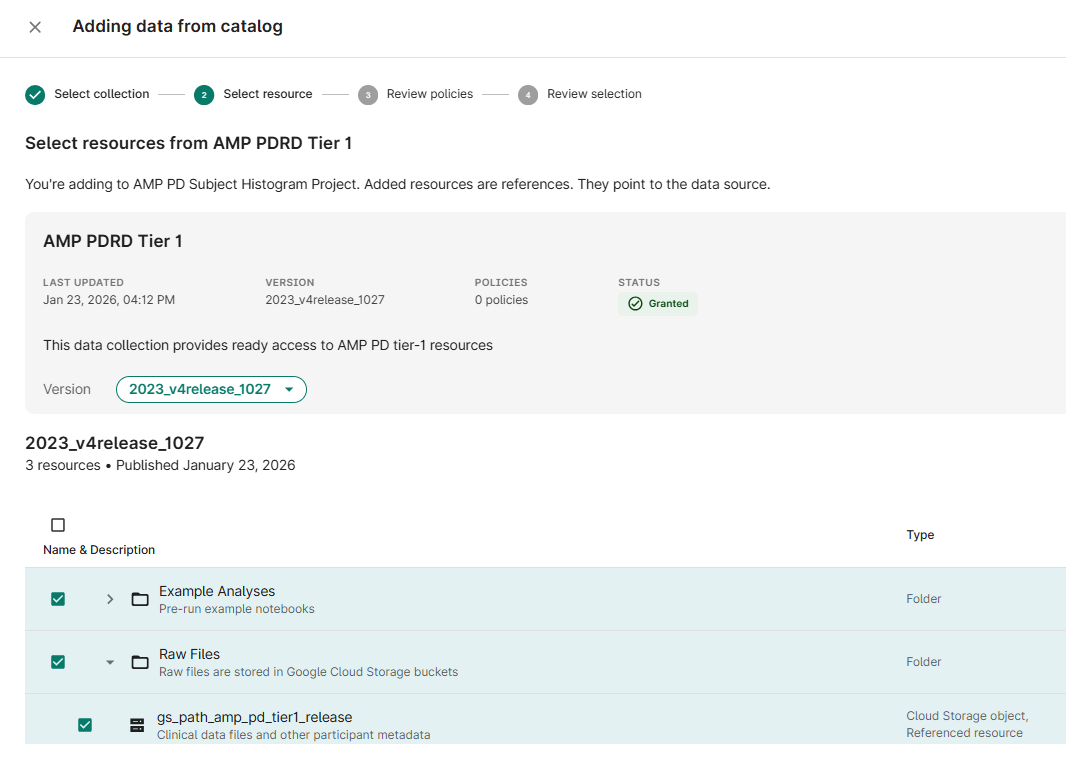
Click the + Data from Catalog button
- Select AMP PDRD Tier 1 from the list of available Collections; click Next
Select checkboxes for the Resource(s) needed for your analysis (gs_path_amp_pd_tier1_release); click Next
- (If prompted) Accept the policy acknowledgement statement; click Next
- Choose Add to an existing Folder; click Add to your workspace
Select Files for Analysis
From AMP PDRD Resource
Select the AMP PDRD resource and choose Browse from the info panel
- Navigate to the clinical folder; click Demographics
- Click Add as reference from the info panel
- Accept defaults; click Add to resources
- (Optionally) Choose additional resources
- Click Close to return to the Resources page
Create an Output Bucket
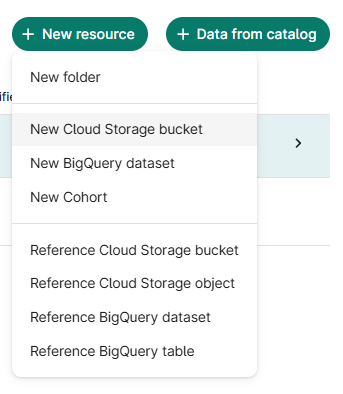
From the Resources tab, click + New Resource
Select New Cloud Storage Bucket
- Assign resource ID; click Create bucket
Create a Virtual Machine to Run Analysis
From the Apps tab, click New app instance, select JupyterLab; click Next
- Choose Default configuration; click Next
- (Optionally) Reduce Machine Type to n1-standard-1
(Optionally) Reduce Data disk size to 100 GB
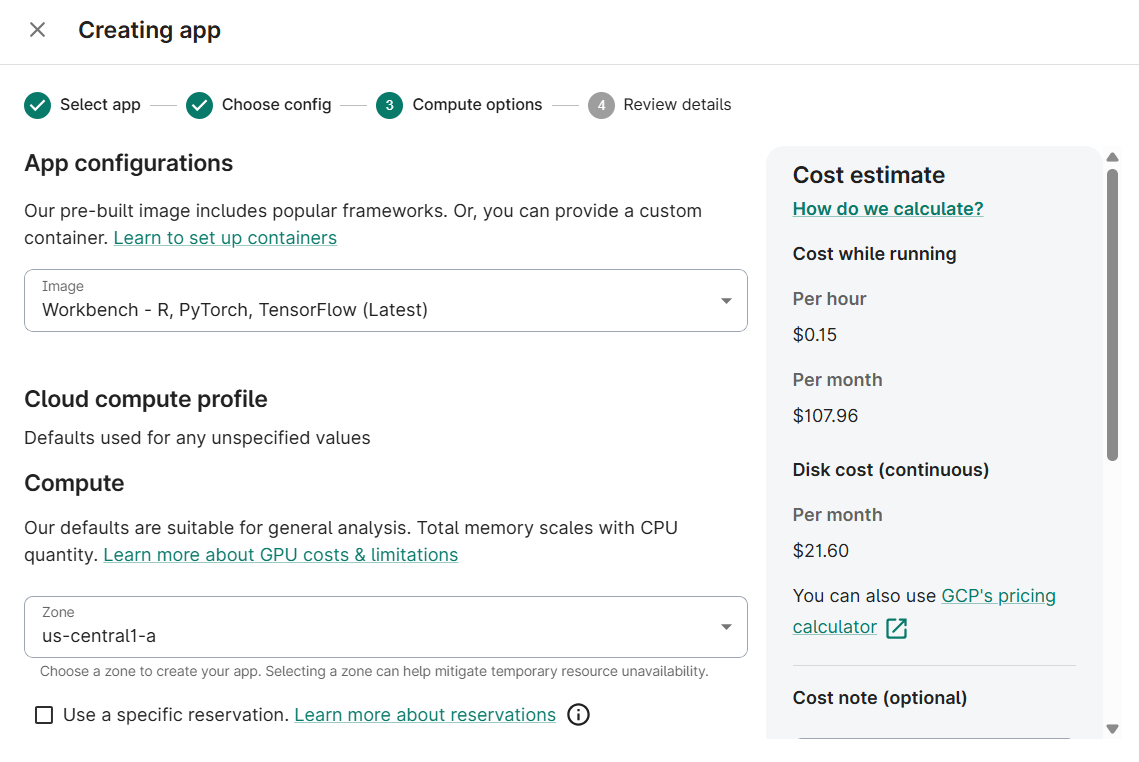
- Accept defaults; click Next
- Review and confirm the app summary; click Create App
- (Note) This step may take several minutes
Create a Notebook for Analysis
From the Apps tab, Launch the newly created virtual machine
- In the JupyterLab Interface that opens, click the Folder Icon in the left menu bar
- In the file browser panel, select the Output Bucket you created earlier.
- In the bucket contents section, right click and select New Notebook
- Select Python 3 (local) kernel type; click Next
Configure Notebook to Analyze Selected Resources
Import Required Libraries
# Use the os package to interact with the environment

import os
# Bring in Pandas for Dataframe functionality

import pandas as pd

# Use StringIO for working with file contents

from io import StringIO

# Enable IPython to display matplotlib graphs.

import matplotlib.pyplot as plt
%matplotlib inline
Create Utility Routines
# Utility routines for reading files from Google Cloud Storage

def gcs_read_file(path):

"Return the contents of a file in GCS"

contents = !gsutil -u {BILLING_PROJECT_ID} cat {path}

return '\n'.join(contents)
Read GCS Locations from Workspace Resources
# Get the GCP billing project ID from workbench environment variables

OUTPUT = !wb utility execute env | grep "GOOGLE_CLOUD_PROJECT" | cut -d"=" -f2

BILLING_PROJECT_ID = OUTPUT[0]


# Get the AMP PD Demographics file location from workbench environment variables

OUTPUT = !wb resource resolve --name=Demographics-csv

GS_AMP_PD_DATA_PATH = OUTPUT[0]
print(f'BILLING_PROJECT_ID = {BILLING_PROJECT_ID}')


print(f'GS_AMP_PD_DATA_PATH = {GS_AMP_PD_DATA_PATH}')

Read AMP PD Demographics Data
# Read CSV file from GCS into dataframe


amp_pd_demographics_df = pd.read_csv(StringIO(gcs_read_file(GS_AMP_PD_DATA_PATH)), engine='python', index_col=False)
amp_pd_demographics_df.head()

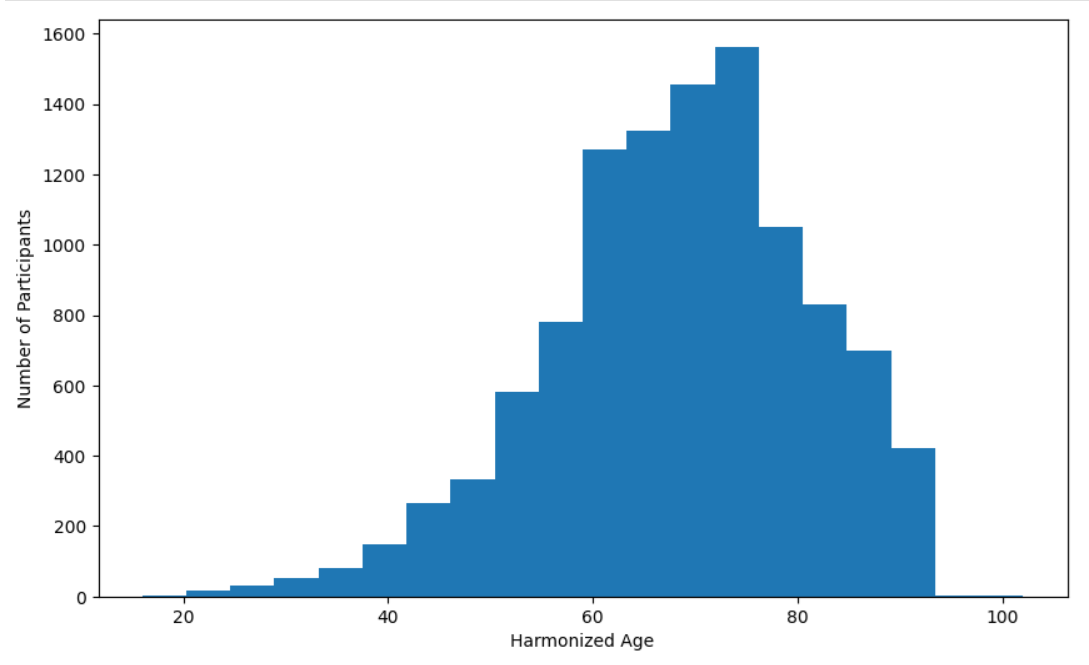
Create Age Distribution Bar Chart
# Configure plot


fig = plt.figure()
fig.set_figheight(6)
fig.set_figwidth(10)

# Create plot


plt.hist(amp_pd_demographics_df ['age_at_baseline'].dropna(), bins=20)
plt.xlabel('Age')


plt.ylabel('Number of Participants')


plt.show()
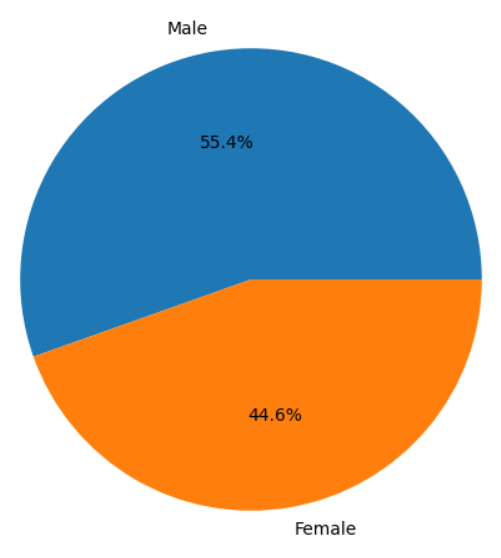
Create Sex Distribution Pie Chart
# Configure plot


counts_by_sex = amp_pd_demographics_df ['sex'].value_counts()
fig = plt.figure()


fig.set_figheight(6)


fig.set_figwidth(10)

# Create plot


plt.pie(counts_by_sex.values, labels=counts_by_sex.index, autopct="%1.1f%%")


plt.figure(figsize=(10, 6))


plt.show()